

Table of Contents
This article contains affiliate links. If you purchase a product or service through an affiliate link of mine, I may receive a commission or incentive. There is no additional charge for you.
Kit has had visual automations for years. I’ve always loved them (and detested when everything was still rules), and they’re one of the reasons I recommend Kit to almost every client I work with. But in all that time, there haven’t been many big changes. Some, yes. Nothing that changed how it felt to build one.
Until now.
Kit has released a new automation builder, and it’s in open beta, so you can try it in your own account today. I was in the closed beta, so I’ve had a while to click around, move things, break things, and get used to it.
In this post, I’ll walk you through what stays the same, what’s different, and whether I think you should switch. Spoiler: I do. 🤗 And if you don’t like it, you can always go back.
What stays the same in Kit's new automation builder
Before you start worrying about relearning everything, the logic behind your automations doesn’t change at all. Events work the same way. Conditions work the same way. Actions are the same actions. If you know how your automations work now, you’ll know how they work in the new builder.
If you’ve never built a Kit automation before, my beginner’s guide to Kit visual automations explains the building blocks. Those still apply, even though some of the buttons have moved.
What’s new is how you see your automations and how you build them. It’s just a lot easier to see the flow of things.
What's changed in the new visual automation builder
A grid canvas that can grow with you
The way a flow shows on screen has changed too. Automations now sit on a grid canvas, which means they can go a lot bigger, and you can zoom out much further and zoom in much further than before.
If you’ve got one of those automations that has grown and grown over the years, it’s a lot easier to see the whole thing, or get right in close on one part of it.
It's drag and drop now, for real
I often see people say Kit has a drag-and-drop automation builder. It didn’t, not really. You clicked the plus, found the thing you wanted and added it, which was easy enough, but you weren’t dragging anything anywhere. And you certainly couldn’t drag a node from one place to another.
Now it really is drag and drop! 🥳
There’s a panel you drag steps in from, split into All, Actions, Conditions and Events. It also suggests apps you might want to connect. Maybe you use Kajabi, so it shows you grant offer. Maybe you sell through Shopify, so it shows you abandoned checkout. I really like this, because it shows you options you might not have known were there.
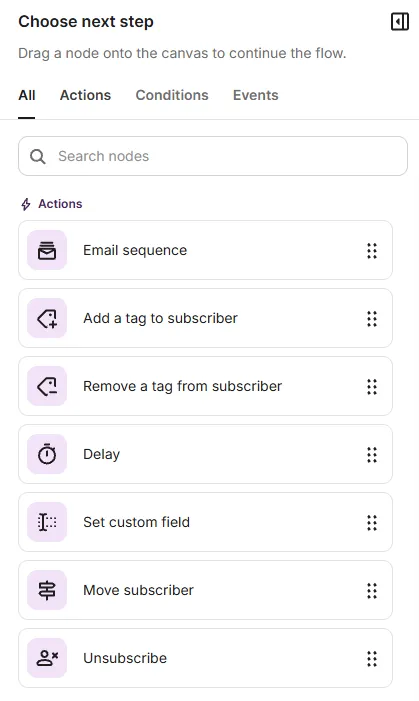
AND because of that:
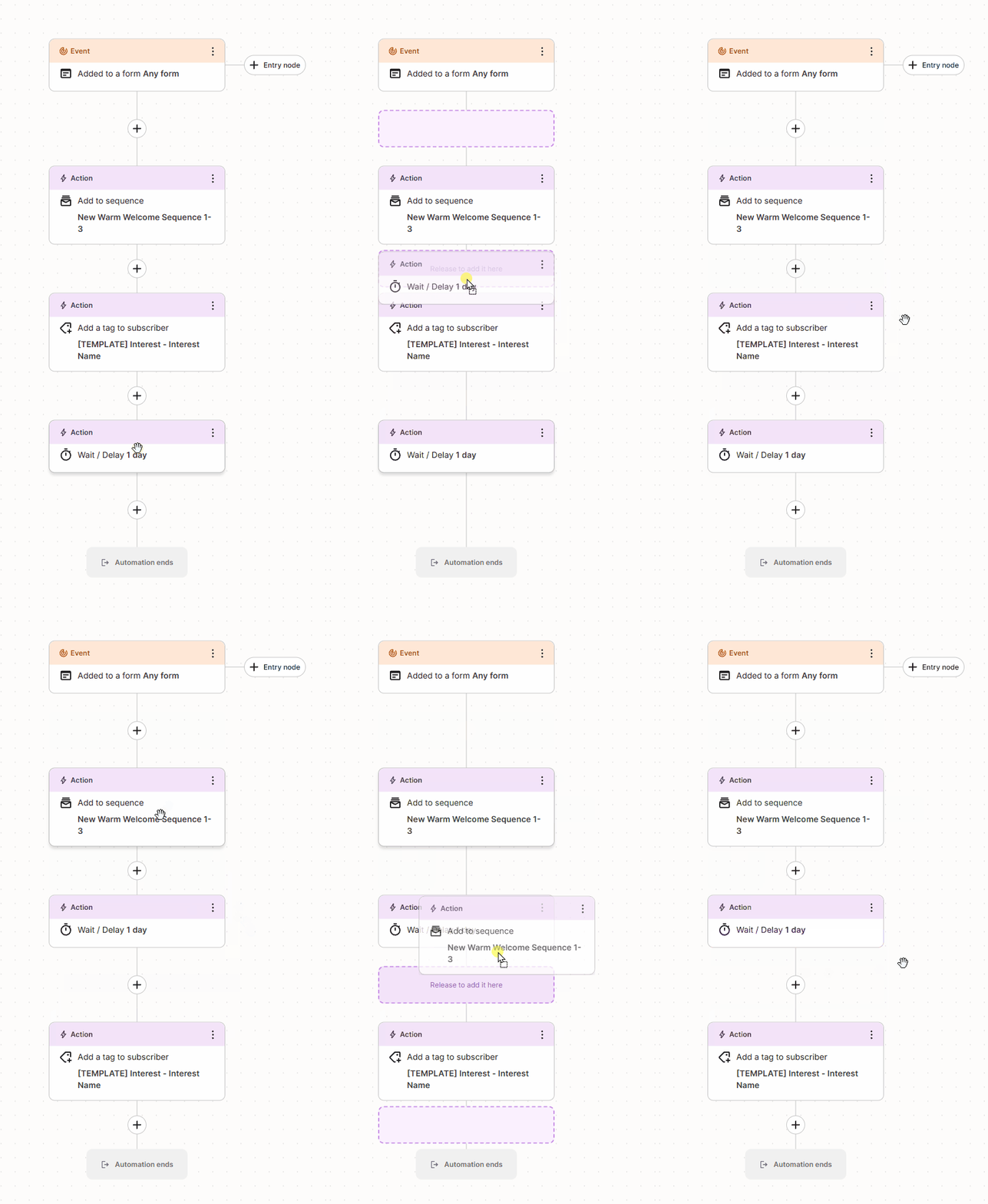
You can move steps around
This is my favourite builder change. In the old builder, if a step was in the wrong place, you had to remove it and add it again where you needed it. I have had to rebuild half an automation more than once, because I needed a different kind of split under a condition, and that meant redoing everything under the condition. Now you just move it!
Safer editing with drafts and a publish checklist
If you’ve ever changed an automation while people were still in it, these two will help.
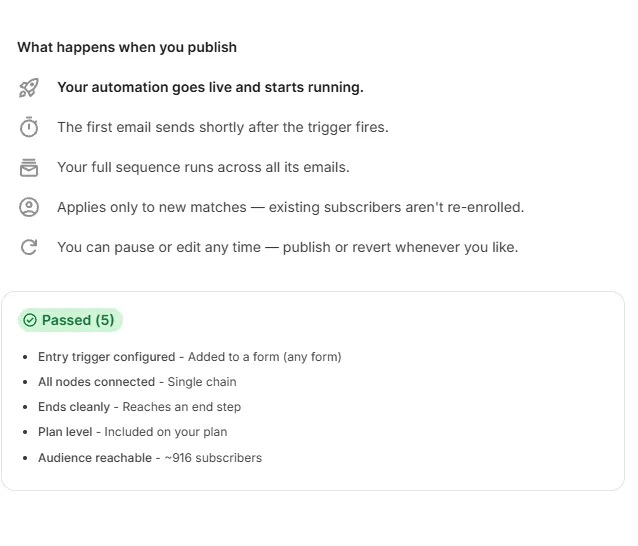
The first is draft versions. You can keep your working automation live and save a draft of the changes you’re working on, without publishing them straight away. So you can make changes over a few days, think about them, and publish when you’re ready.
The second is a publish checklist. When you publish, Kit checks whether everything is set up to work the way you want. If something looks off, it asks you. Are you sure you want this? Did you know this is going to happen?
Do you have overview over your email marketing? 😊 Don’t worry, most of us don’t.
That’s why I created the Email Flow Map that helps you map out what’s going on.
The overview page shows you all
Before you even open the editor, you now land on an overview page for each automation. Which is so helpful for you as a business owner.
You can add a description of what each automation does. (I’ll admit I haven’t filled that in for a single one of mine yet. But I can.) And you can see four numbers for each automation: how many people entered, how many unsubscribed, how many completed it and how many are currently in it.
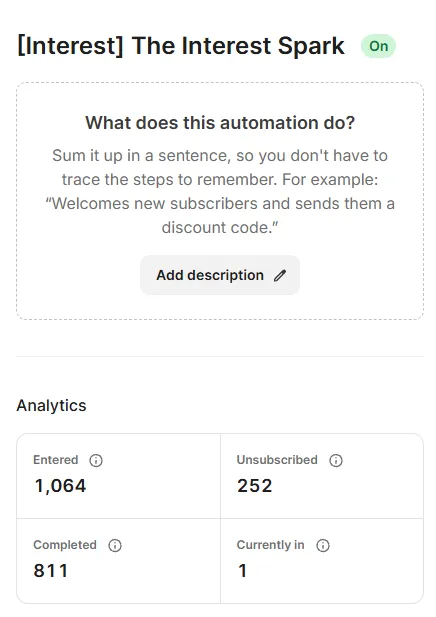
I was talking to someone the other day about my quiz automation. Roughly 100 people had entered it, and about 75 of them had unsubscribed. That sounds bad, right?
It isn’t. I’m totally fine with that, because it means the people who stayed actually want to be there. But before, that was really hard to see, and really hard to explain. Now it’s right there on the page.
A client of mine once described her own account like this: “I have overview, but barely. I’m close to knowing, oh, that’s what this does, but it’s getting so big that I don’t.” If that sounds like your account, these numbers and that description field are where you start. Write one line about what each automation is for, and look at who’s in it and who’s leaving.
And it’s not only for people who think visually. Another client told me, “I don’t understand the visual sequences at all. My brain doesn’t work like that. But it works in words.” A nicer canvas won’t change that for her. A plain description of what each automation does, in words, might.
Should you switch to Kit's new automation builder?
Yes. I would recommend switching. It’s really an improvement and it makes some of the things you all have been struggling with easier.
And you can have a play now, see how your automations look in the new version and also see what hasn’t changed. Like how you can still only have five entry points at the start of an automation. I did wish there were more. But you also don’t want twenty entry points into one automation, right?
It isn’t perfect yet. It’s harder to click into a sequence than it was in the old builder, and I don’t love that. I also ran into a bug during the beta. Kit fixed it, but when you build something this new, that will probably happen a few more times. It comes with testing something while it’s still being built.
But if you need to, you can move them back to the legacy builder. So if you’re struggling with it, or you just don’t like it, switch back. Nothing is lost! But it’s nice, it’s helpful, and it’s going to be there, so learning it now is a good idea.
Kit hasn’t said whether or when the old builder will be switched off. I assume it will be quite a while. Their help documents still mostly describe the old version.
How quickly you switch depends on how comfortable you are with your automations. If you’ve been missing real drag and drop, go and have a play today.
Sign up for Kit through my affiliate link and get a 30-day free trial!
Ready to have a play?
If you open that overview page and the numbers make you go “wait, is that right?”, that’s a good moment to get a second pair of eyes on it. 😊 In a Kit Account Audit I go through your whole account and give you a written, prioritised list of what’s working, what isn’t and what I’d change first. And if you’re not on Kit yet, here’s my honest Kit review on why I recommend it.
But first, go and open one of your automations in the new builder. Zoom out. Move something. Read your numbers. What’s the first thing that surprises you?